The Leads Tab on E1 is your central hub for managing project invitations, tracking, organising and finding opportunities to quote on projects. Invitations sent by builders are consolidated on the Leads screen. These invitations can help you identify and navigate projects of interest across your team.
Invitations appear when builders request quotes from you or when you access project documentation on E1.
Watch a quick, 3-minute video guide below:
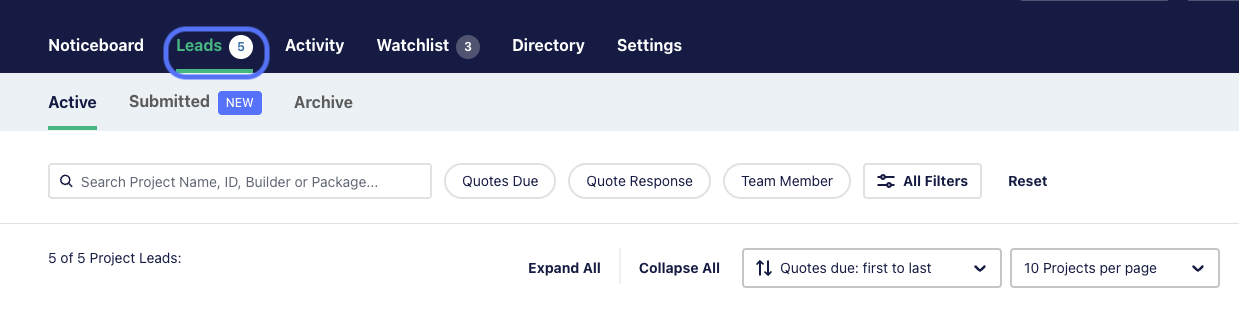
Navigating the Leads screen
The Leads feature is designed for simplicity and functionality:
- Active tab: View all open projects where the quote due date hasn’t passed.
- Submitted tab: Any leads that are quoted on E1, or you select the ‘Quote Emailed’ status will move here.
- Archived tab: Access projects that are 5 days or more past the quote due date.
- Search and Filters: Use the search bar or filters to locate specific projects by:
- Project name, project ID, builder, or package
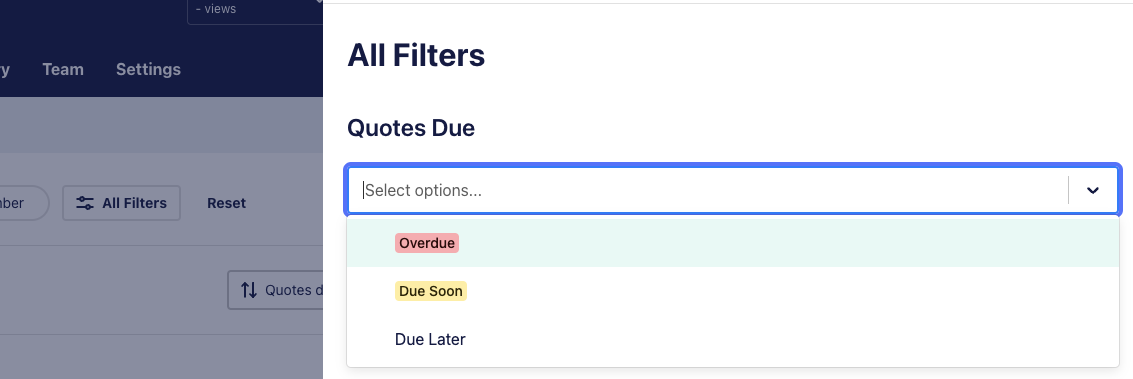
- Quote response and quotes due status
- Team member
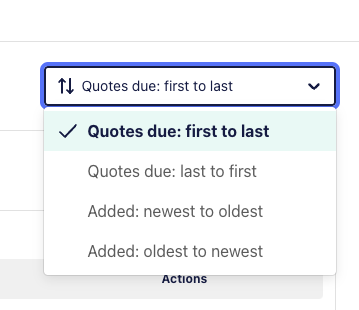
- Sort Leads: Use the sort function to prioritise your leads by quote due date or by the date the project was added to E1.
Viewing your team’s Invitations
The Leads tab will show the invitations only assigned to you.
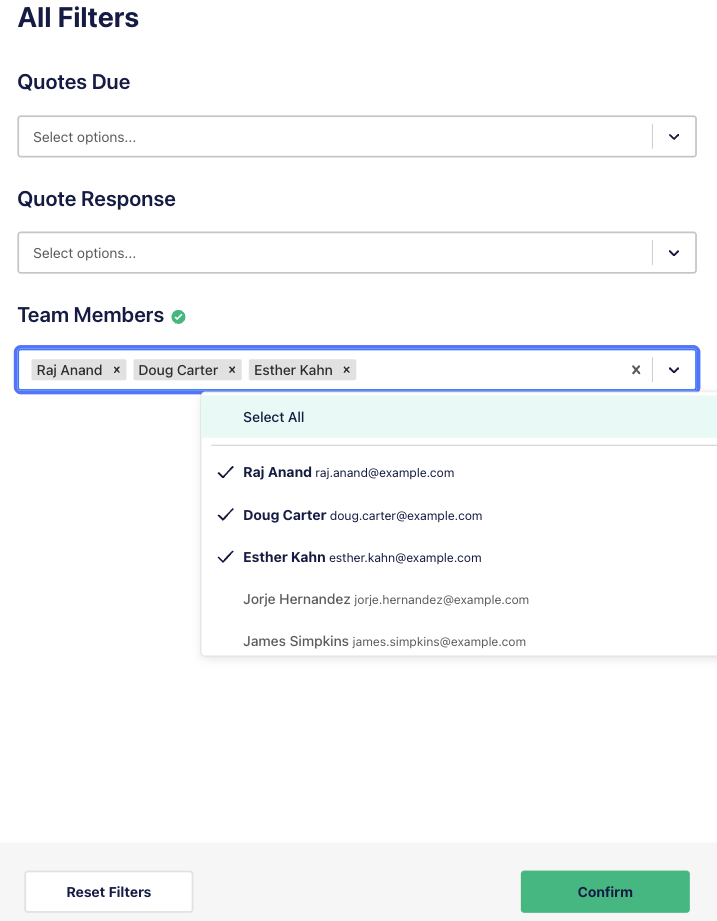
To see invitations sent to other team members, use the Team Member filter. Click on the names of your team members to add them to the list or choose ‘Select All’ to view all of your team’s invitations.
To remove team members from the view, click the ‘x’ next to their names in the filter.
- Select Team Member filter:

- Select or de-select team members:
Private projects
Note that invitations to privately listed projects are only accessible to the individual Team Member invited. You will see a listing for the project in the Leads screen but won’t be able to interact with it unless you are the invitee.
Privately listed projects will have the Quote Response menu and actions disabled, and you’ll see a note stating who the invitee is when you hover over these elements.

Streamlined project view
The Leads screen groups invitations by project, making it easy to keep an eye on all builder invitations and documents from one place.
In the example below, we can see that the project name is ‘179 Grey Street- EOT’, and we’ve received invitations from three builders: ‘Barry’s Builders’, ‘Bob’s Builders’ and ‘Brett’s Builders’
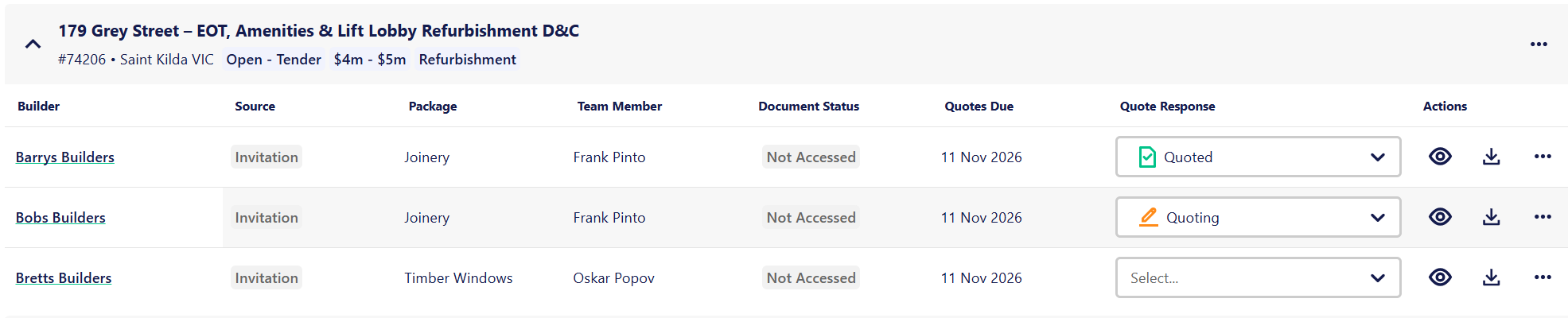
We can also see:
- The Builder and the Builders Profile on the project (more on that below)
- The Source column will highlight how the Lead has been generated
- Source will display ‘Noticeboard’ if the lead has been created through viewing, downloading or requesting documents on a project from the Noticeboard.
- Source will display ‘Invitation’ if the lead has been created by being invited to a project by a Builder
- Which package the Lead relates to
- The team member that received the invitation or triggered the Lead through viewing or downloading documents.
- When quotes are due
- The nominated quote response from your team (more on that below)
View all tendering builders
Essential Licence holders can view all tendering builders for open projects that you’ve been invited to directly on the Leads screen.
This allows you to see other tendering builders on the same project even if you haven’t been invited yet. This visibility helps you proactively reach out, expand your network, and increase your chances of winning more work.
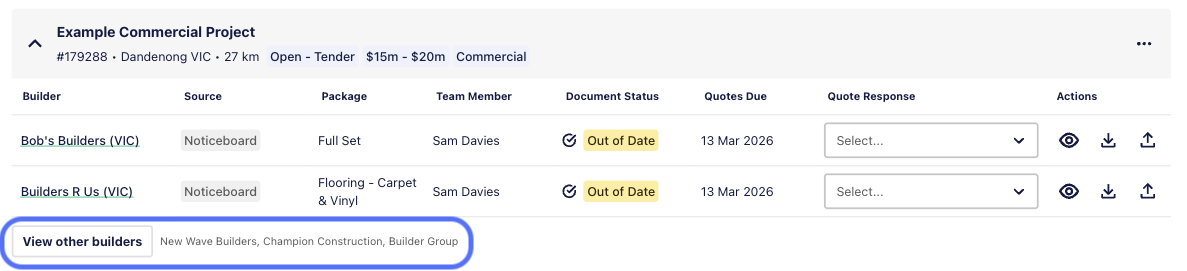
Click ‘View Other Builders’ and the project page will open. You can then either view, download or request documents from the additional builders.
Prioritise projects by Quotes Due Date
We’ve made it easy to see critical time frames to help you manage your invitations by tagging projects that are due within the next seven days, as well as highlighting any that are overdue.
You’ll see the tag highlighted next to the project name. If there isn’t a tag, it’s not due within the next week.
We recommend using the Sort menu to organise by due date to see what’s coming up next, or filtering by status.
Example of an Overdue project:

Example of a project due within the next 7 days:

Example of a project due in 8 days or greater:

Sort by Quotes due: first to last to prioritise your quote creation by quote due date:
Filter by Quotes Due status:
Document status indicators
The Document Status column helps to ensure that you’re always working from the current project documentation.
- Not Accessed: Indicates that you have not yet opened documents
- Out of Date: Highlights documents revised by builders and you’ve not yet viewed the most recent version
- Current: You’ve viewed the most recent documents for this project
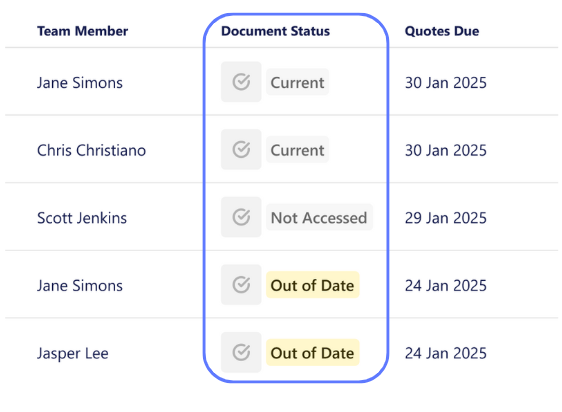
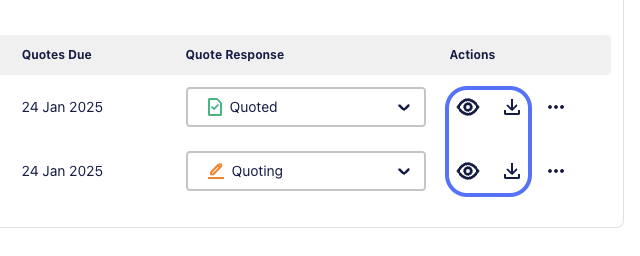
View the most recent files by clicking the ‘View Documents’ or ‘Download Package’ buttons.
Responding to Leads
Keeping builders informed about your intent to quote is vital. It demonstrates to them that you are responsive and improves efficiency on both sides of the project.
On the Leads screen, you can update your response using the Quote Response dropdown menu.
- Quoting: Indicates your intent to submit a quote
- Quote Emailed: You have emailed the quote directly to the builder, not via E1
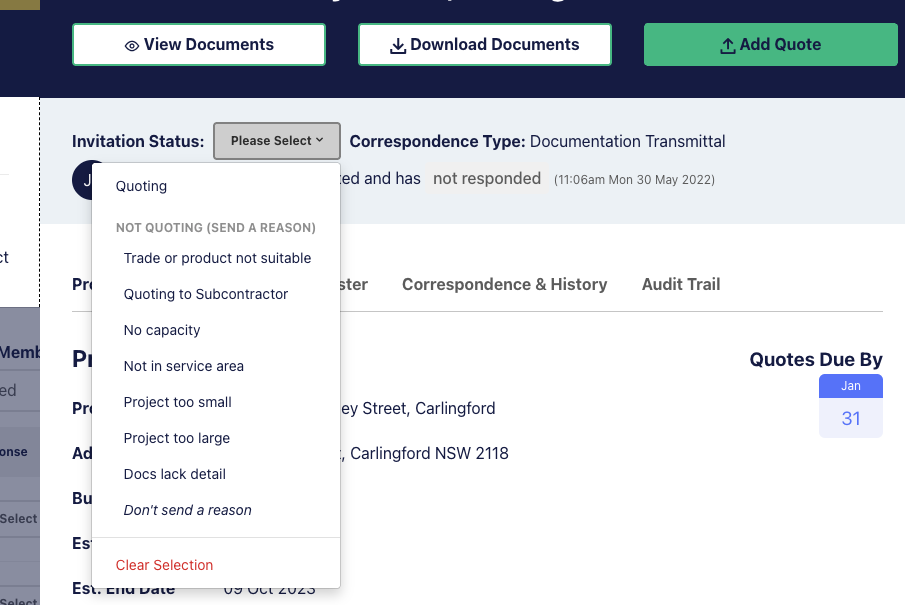
- Not Quoting: Lets the builder know you’re not participating, you’ll have a number of decline reasons to select from:
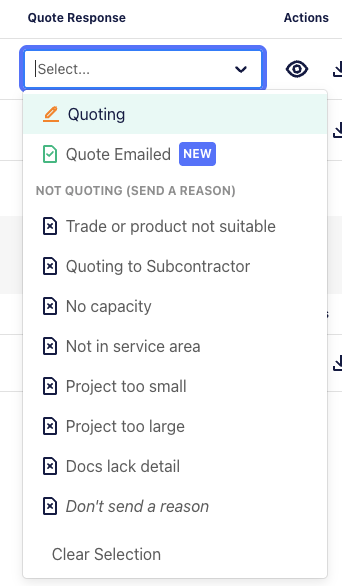
This keeps your workflow organised and updates the builder’s records automatically. You can see your team’s responses at a glance.
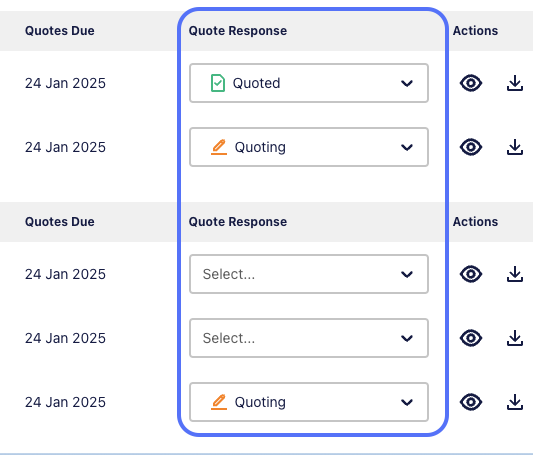
Selecting a not-quoting reason counts as being responsive on E1. Staying responsive can positively influence your reputation and future opportunities.
Submitted quotes - tracking your success on E1
Keep on top of the outcome of all of the quotes submitted by your team within the Leads experience. Use the Submitted tab for improved internal tracking of your Leads.
All quoted opportunities, including those that had been submitted via the Quotes feature on E1 or marked as ‘Quote Emailed’ will appear in your Submitted tab for easy access.
We recommend taking the time to set your quote outcomes once known, to unlock powerful insights for smarter quoting decisions.
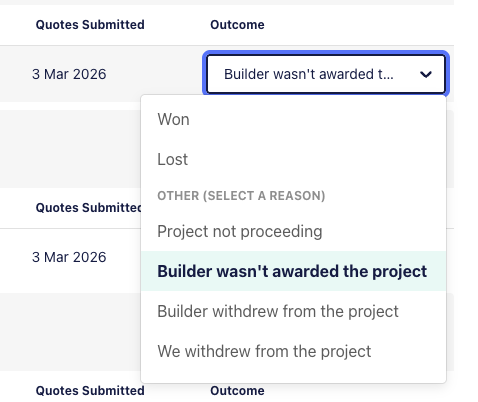
Once you’ve updated an outcome, you will find stats on your overall performance across all quoted opportunities as well as with individual Builders.
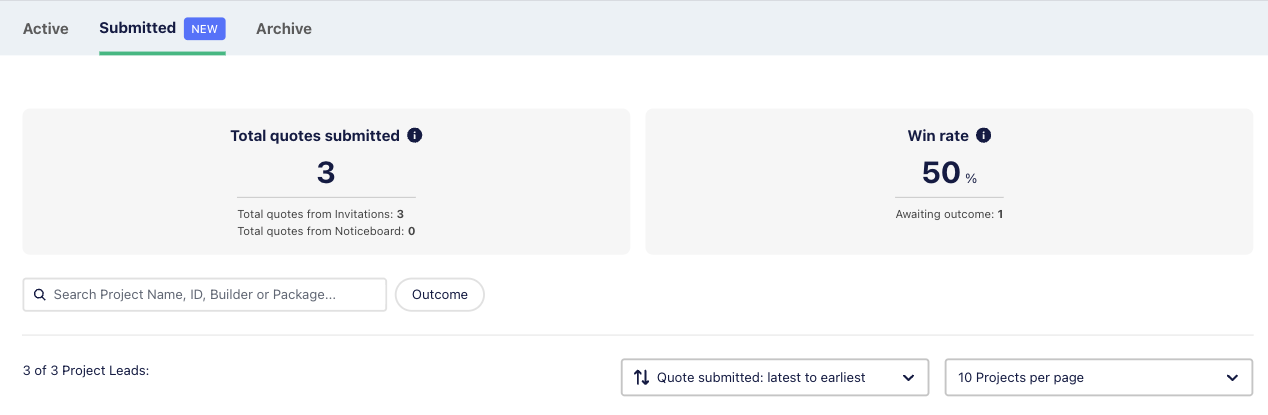
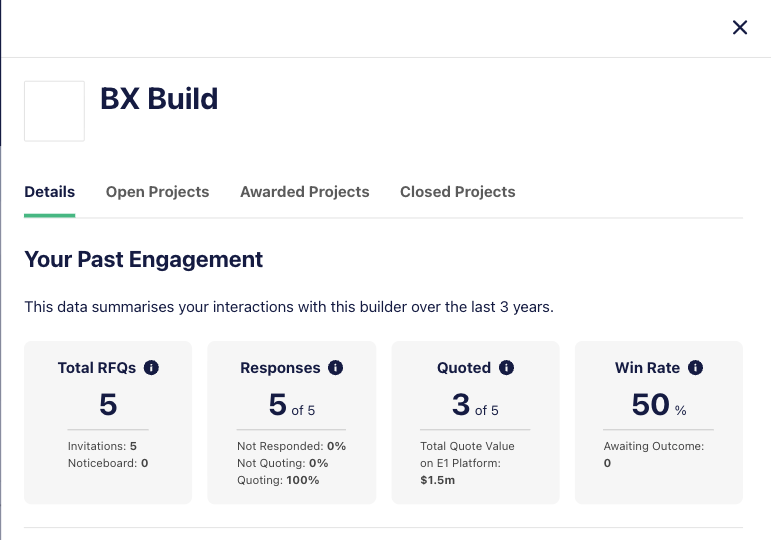
You can also view the success of your individual builder relationship. Click the Builder’s company name to see how often you quote and win with a particular Builder.
Responding to Invitations from an email
You can also respond to an invitation from the notification email. If you are logged in to E1, you’ll be taken to the project slider and can select your intention to quote or not quote, including the option to nominate a quote decline reason.
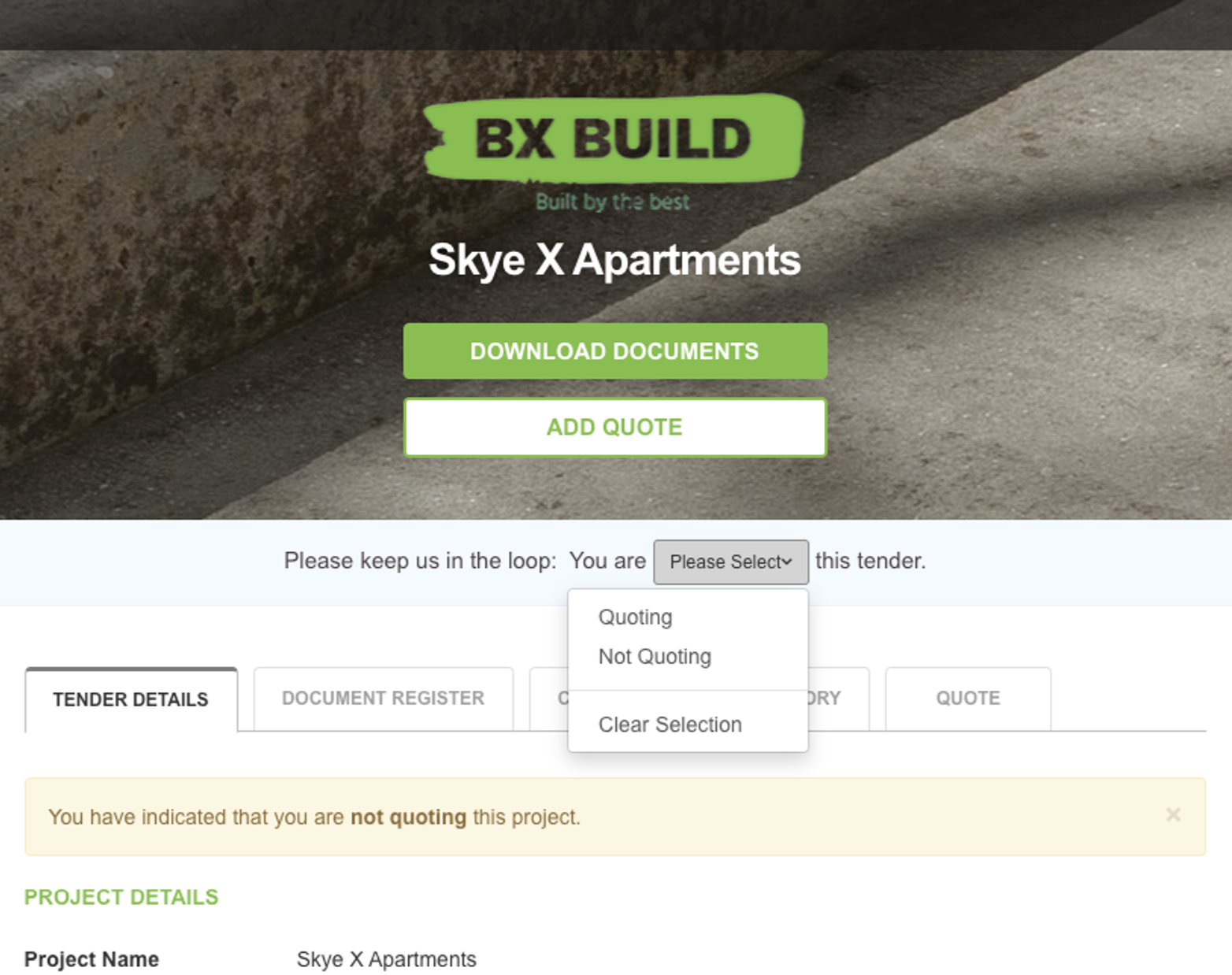
If you are not logged in, you can respond directly from the invitation, but won’t be able to choose a quote decline reason when selecting ‘Not Quoting’.
Archiving Leads
An invitation within a project lead will automatically move from the Active tab to the Archive tab if it meets both of the following criteria:
- Quote Response: Status is either ‘Not Quoting’ or ‘No Response’
- Quote Due: The quote due date has passed by more than 5 days
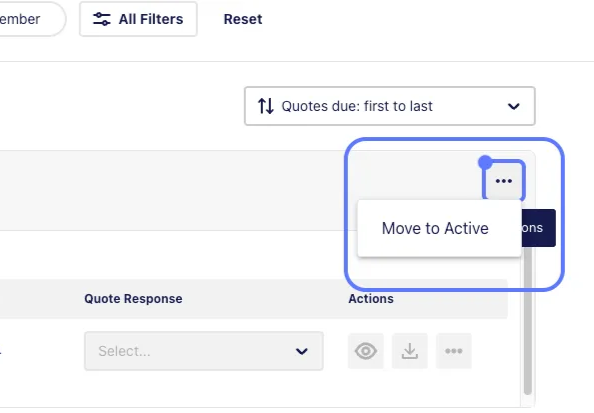
You have the option to manually move a project to the Archive tab, or retrieve it from Archive back to Active.
To move a project lead from the Active list to Archive, click on the ellipsis menu (...) and select ‘Move to Archive’. All invitations associated with this project lead will also move to the Archive list.
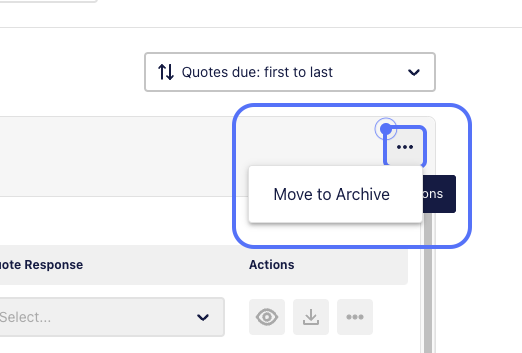
To move a project lead from the Archive list to Active, click on the ellipsis menu (...) and select ‘Move to Active. All invitations associated with this project lead will also move to the Active list.
The Leads screen streamlines how you manage and respond to project invitations, helping you focus on the opportunities that matter most to your business. Explore the feature and make the most of your E1 account!
Navigating the Project page
Clicking an invitation on the ‘Leads’ page opens a full-page view of that project — showing the project details, documents, your response options, and the full activity history for that invitation.
Status badge
The top of the page shows the project name and a status badge reflecting where the invitation stands:
| Badge | Meaning |
|---|---|
| NEW | You haven't downloaded or responded yet |
| QUOTING | You've told the builder you intend to quote |
| QUOTE SUBMITTED | You've submitted a quote |
| NOT QUOTING | You've declined the invitation |
| (no badge) | You've downloaded documents but haven't responded |
Project summary
Below the header, a summary grid shows:
- Builder — the builder who sent the invitation, with an "Awarded builder" badge if they've been awarded the project
- Package — the trade package you've been invited to quote on
- Category — project category (e.g. Commercial, Education)
- Approx. Project Value — the builder's stated budget range
- Quotes Due — the quote due date, with Due Today, Due Soon, or Overdue badges where relevant
- Location — project address, with distance from your office if available
Project details
The Project details section (collapsed by default, expands on click) shows:
- Project description
- Full address
- Estimated project dates (construction start and end)
- Builder contact name and phone number (if provided)
Activity
The Activity section shows a full timeline of everything that has happened on this invitation — when you were invited, when documents were downloaded, when you responded, and when a quote was submitted or revised.
Click Show more to load earlier entries. Click Show less to collapse back.
Other tendering builders
The Other tendering builders section lists other builders also tendering this project (if any). If your plan doesn't include access to this data, an upgrade prompt appears here instead.
Trades involved
The Trades involved section lists the trades specified for this project, grouped by discipline. If no trades have been specified, the section says so.
Keywords
If you have SpeciFinder keywords configured, the Keywords section shows where your terms appear in the tender package — which document they appear in and the relevant extract. Use Refine keywords to update your keyword list.
If you haven't set up any keywords, the section shows a prompt to add your first keyword.
View documents
- Click View Documents to open the document viewer.
- The viewer lists all documents in the package down the left-hand side.
- Browse and read documents without downloading them.
Download Package
- Click Download Package to download all documents in the package as a single file.
- If the RFQ is assigned to a teammate, a confirmation dialog asks you to confirm before the download starts. Click Agree & Download.
- Once the download begins, a dialog appears. If the download doesn't start automatically, click the link in the dialog.
- After downloading, you can View Transmittal, Email Transmittal, or View all correspondence for this project from the same dialog.
Documents changed — downloading updates
If the builder uploads new or revised documents after you've already downloaded the package, a Documents changed banner appears at the top of the Project page.
- The banner describes what changed.
- Click Download changes to download only the new or updated documents — not the full package again.
Responding to the invitation
The Your Response panel appears in the right column on wider screens. On mobile it appears as a sticky footer pinned to the bottom of the screen.
Intend to Quote
- Click Intend to Quote.
- The panel updates to confirm: "[Builder name] knows you're quoting."
- An Add Quote button appears.
This tells the builder you're working on a quote. You can change your response at any time by clicking Change.
Not Quoting
- Click Not Quoting.
- A list of reasons appears: Trade or product not suitable, No capacity, Not in service area, Project too small, Project too large, Docs lack detail, or Don't send a reason.
- Tap a reason to send it to the builder and record your response.
The panel updates to show "[Builder name] knows you've passed." Click Change if you change your mind.
Submitting a quote
Once you've indicated you intend to quote, an Add Quote button appears.
- Click Add Quote.
- Enter your quote amount and any supporting documents in the quote form.
- Submit the quote.
After submission, the Project page shows:
- Your quoted amount in the Your Quote panel (right column or mobile footer).
- Whether the builder has viewed your quote yet ("Not yet viewed by [builder]" or "Viewed by [builder] · [date and time]"). [NEEDS SME CONFIRMATION: The "viewed by builder" status is described in the code as a licensed feature — confirm whether this appears for all subcontractors or only those on certain plans.]
- Revise Quote and View Quote buttons to update or review your submission.
Revising a quote
- Click Revise Quote from the Your Quote panel.
- Update your amount or documents in the quote form.
- Submit the revised quote.
The Project page and the Leads list both update to reflect the revision.
What happens after you submit
- The Leads list updates the invitation's status to Quoted.
- The builder can see that you've quoted and review your submission.
- The Activity section on the Project page records the quote submission in the timeline.
- If the builder views your quote, this is reflected in the Your Quote panel (subject to account plan — see note above).